Working with large Outlook mailbox files can be a challenge, especially when you need to convert PST files to PDF format for documentation, compliance, legal records, archiving or simply for sharing. Small PST files are usually converted without any problems, but large mailboxes often cause hurdles such as software crashes, incomplete exports, lost attachments and long conversion times.
If you face any trouble in converting large PST files to PDF, then this article will explain to you the reasons behind such issues and effective ways to deal with oversized Outlook mailboxes.
Understanding PST and PDF Files
What Is a PST File?
Microsoft Outlook uses PST (Personal Storage Table) file format to store mailbox data on your computer. It’s got emails, contacts, calendars, notes, tasks, journals and attachments. PST files are often used for email backup and data storage.
What Is PDF File?
PDF stands for Portable Document Format and is a popular document format that is not editable and will display the same formatting on any device or operating system. PDFs are very popular for storing records, legal documents, sharing and archiving for the long term.
Why Convert Outlook PST Emails to PDF?
Advantages of Converting Outlook Emails to PDF:
• Seamlessly share across many platforms
• Improved long-term archiving
• Legal & Compliance Information
• Easy to read with no Outlook setup
• Keeping important emails in a safe place
• Reporting and printing made easy
Many organizations do PST to PDF conversion for the purpose of archiving emails in a format that can be viewed almost everyplace.
The Challenges of Converting Large PST Files
Oversize PST files tend to contain years of mailbox data, thousands of emails and large attachments. Users may encounter during conversion:
• Software crashing or freezing
• Slow conversion speed
• Memory consumption problems
• Email exports not finished
• Missing attachments
• Corrupt mailbox folders
• Conversion failures
These problems are more likely to occur when PST files grow larger than a few gigabytes.
How to Manually Convert PST Emails to PDF (Free Method)
Microsoft Outlook allows users to manually save emails as PDF files.
Step-by-Step Manual Conversion Guide
Step 1: Launch Microsoft Outlook.
Step 2: Choose the email you want to convert.
Step 3: Choose File > Print.
Step 4: Select Microsoft Print to PDF from the printer.
Step 5: Click Print.
Step 6: Click Print, choose your destination folder, name the file and save.
Repeat the process for each email you want to export.
Advantages of the manual method
• No third-party software needed
• Appropriate for some emails
• Available on modern Windows versions
• Simple to use for occasional use
Limitations of the Manual Method
Manually doing this is not feasible for oversized PST files.
Main Disadvantages:
• Converts email one at a time
• Takes a lot of time
• No support for bulk conversion
• Possibility of human error
• Not efficient with big PST files
• You may lose the folder hierarchy
• Not easy for enterprise scale migrations
Moving a mailbox with thousands of emails manually can take hours or even days.
The Best Solution for Oversized PST Mailboxes
Automated conversion tools are typically the best solution for oversized Outlook mailboxes.
TrustVare PST to PDF Converter is a tool to export Outlook PST files to PDF format with the email structure, attachments, metadata and the folder hierarchy intact. The software supports ANSI, Unicode, encrypted, password protected and large PST files without any need of Microsoft Outlook installation.
The software features batch conversion, powerful filtering, preview capability and selective exporting. It can process multiple PST files simultaneously and supports PST files from small archives to large mailbox databases.
Step-by-Step Automated Conversion Guide
Step 1: Download and install the application.
Step 2: Run the software.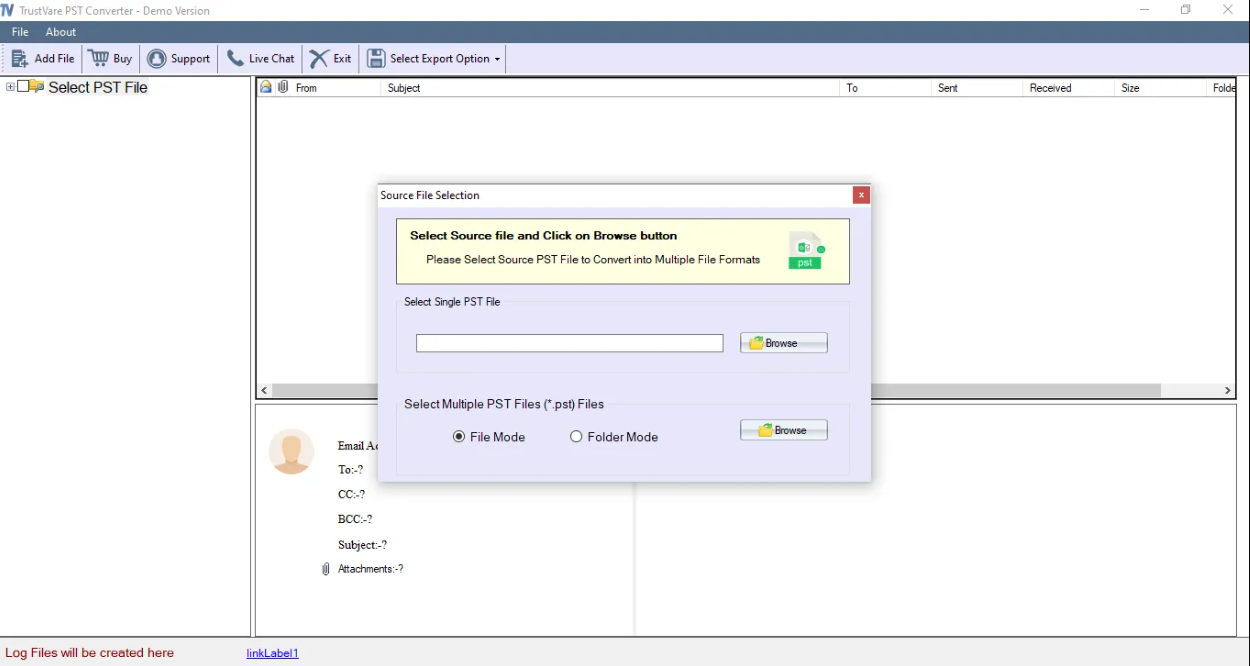
Step 3: Explore and select the PST file in File Mode or Folder 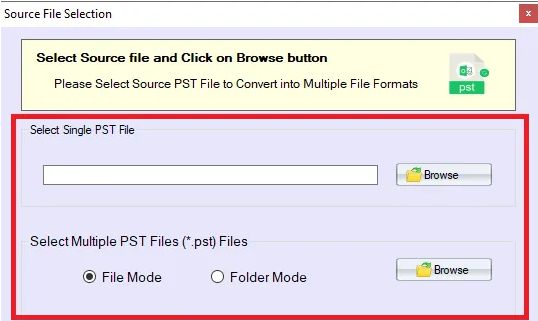
Step 4: Let the software scan and preview mailbox 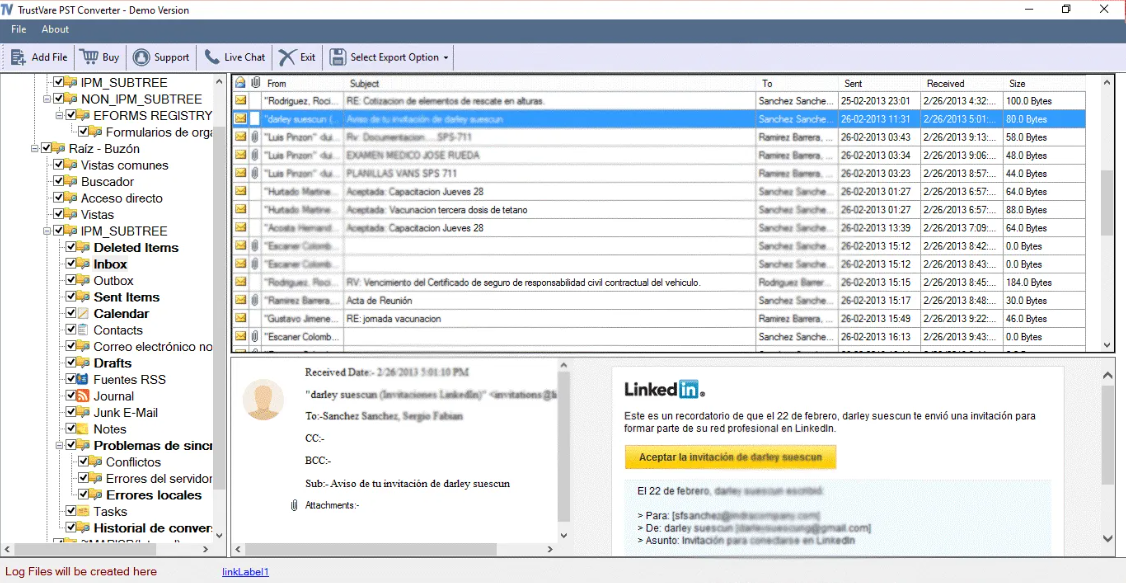
Step 5: Choose the folders or messages you want.
Step 6: Select PDF as the export 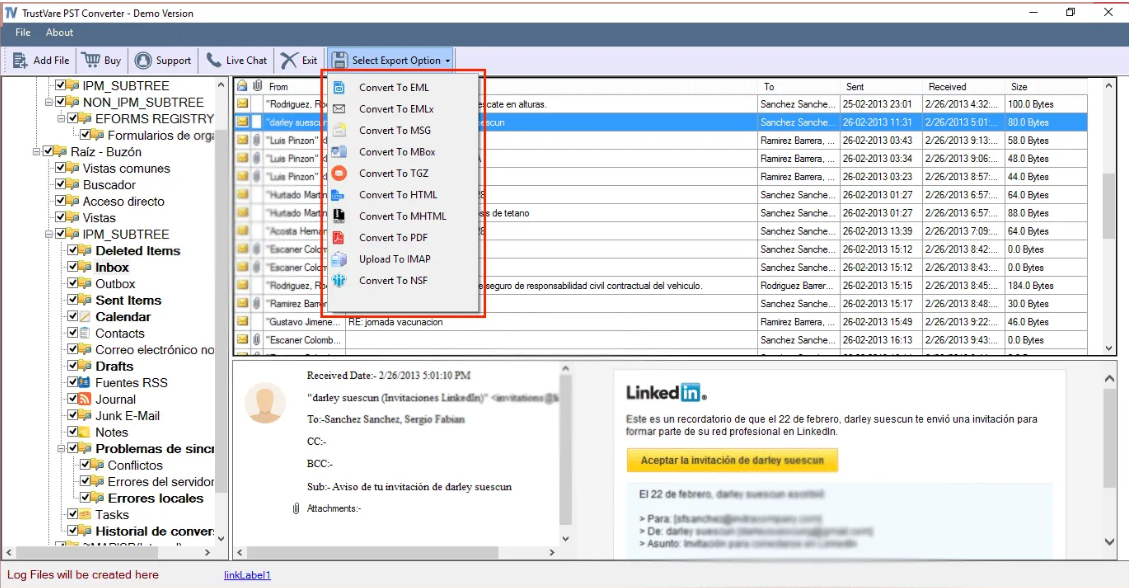
Step 7: Mention the place where you want 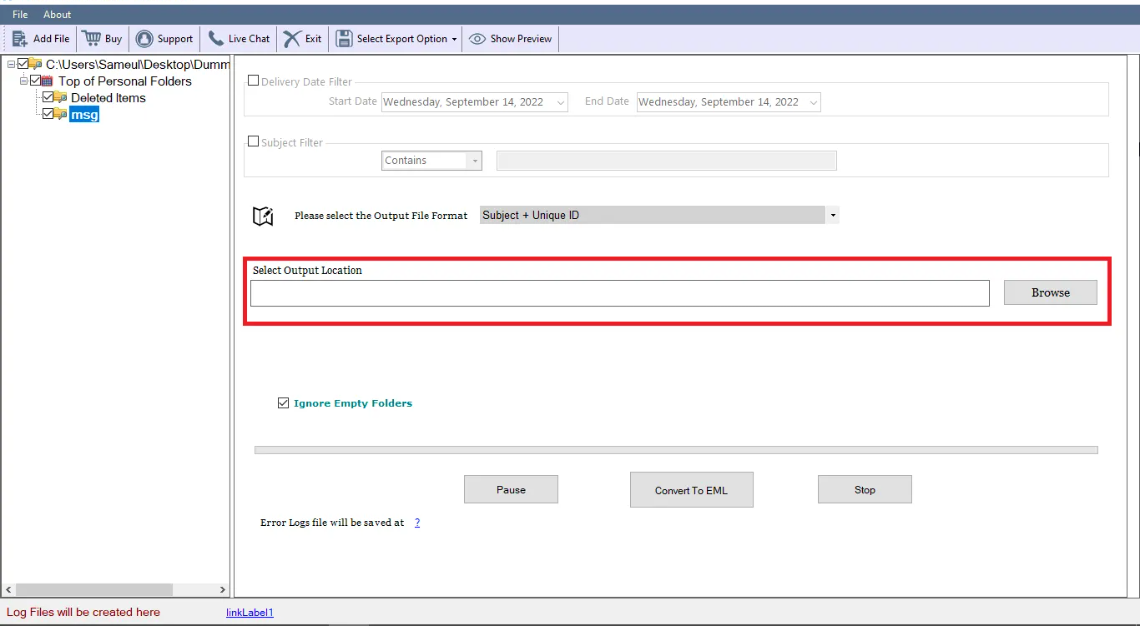
Step 8: Start conversion 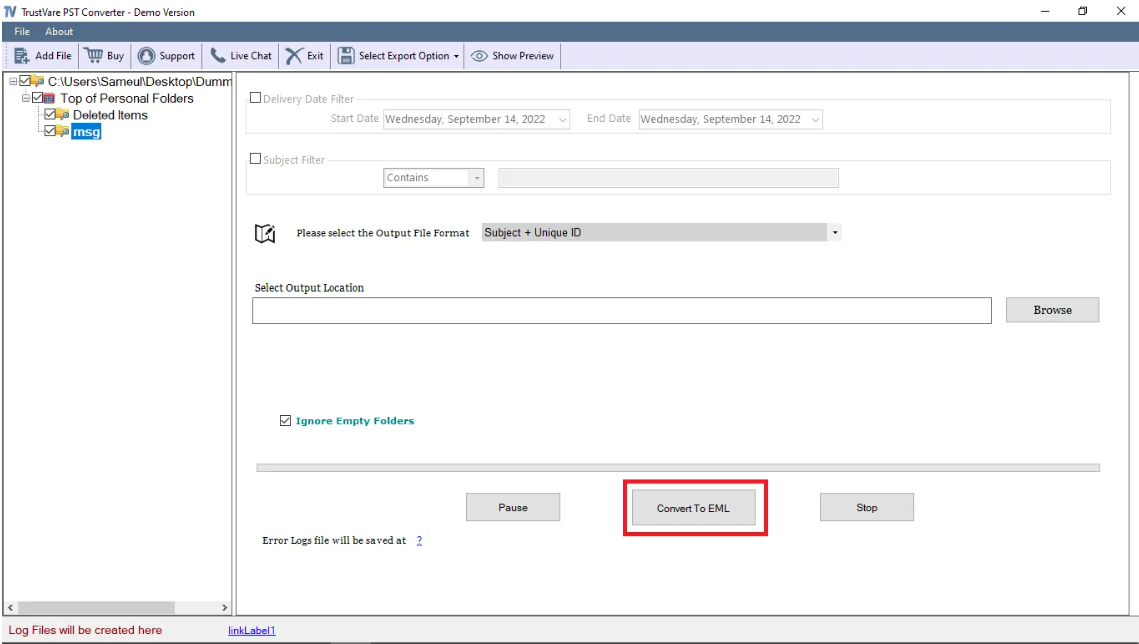
Step 9: Verify the exported PDF files.
The workflow for TrustVare conversion tools is similar to these steps: file selection, preview, filtering, export selection, and output configuration.
Why Automated Tools Outperform Manual Methods
Professional conversion tools are especially designed to overcome the limitations associated with oversized mailboxes.
Main reasons:
• Offers good support for large PST files
• Batch conversion possible
• Maintains folder hierarchy
• Keeps attachments and metadata
• Converts password-protected PST files
• No dependence on Outlook
• Sophisticated filter options
• Creates conversion reports
• Lessens the risk of data loss
According to the product information, the application can process PST files from small archives to very large mailbox files, without losing the properties and structure of emails.
Best Practices for Large PST File Conversions
To ease the transition, these suggestions are offered:
• Take a backup of the PST file before conversion.
• Verify and repair PST files before conversion.
• Close any programs you’re not using while converting.
• Save converted PDFs to a drive with enough free space.
• Convert many files in batch.
• View mailbox data before export.
• Filtering unwanted folders to reduce processing time.
• Always use the latest version of the software.
Who Needs Professional PST to PDF Converters?
The automated approach works best for:
• System administrators
• Legal professionals
• Compliance teams
• Enterprise customers
• Outlook Migrations Projects
• Users with PST files larger than 10 GB
• Organizations with e-mail archives
TrustVare PST to PDF Converter is also being mentioned for the second time and is most useful for those working with large Outlook archives regularly and require a reliable bulk conversion with minimum manual input.
Frequently Asked Questions
Can you convert a 20GB or 50GB PST file?
Yes, you can convert 20GB or 50GB PST files to PDF. For large files of this size, professional PST to PDF conversion tools handle the workload much more efficiently than manual methods, provided your computer has adequate RAM and storage space.
Are email attachments retained?
Most professional solutions preserve email attachments, metadata, sender info, timestamps, and folder structure during conversion.
Do I Need Microsoft Outlook Installed?
There are many dedicated PST conversion tools that are standalone and do not need Microsoft Outlook to be installed.
Can I convert in batch?
Yes. Batch conversion is the most suitable way to save precious time by exporting the multiple PST files at a time.
Can password-protected PST files be converted?
Yes. Some professional solutions support password-protected and encrypted PST files.
Conclusion
Manually converting large PST files to PDF can be a daunting task. Large mailboxes may cause problems such as slow performance, incomplete exports, and greater risk of data loss. The built-in printing method of Outlook may work for a few emails, but it is not practical for large-scale mailbox conversion.
If you deal with oversized PST files, then a professional conversion solution is the most efficient and reliable way to go. Bulk processing, preview, advanced filter support, large PST file compatibility and mailbox structure preservation are features that make automated conversion a viable choice. By following the best practices mentioned above, you can successfully convert large Outlook mailboxes to PDF format and preserve the integrity of your valuable email data.