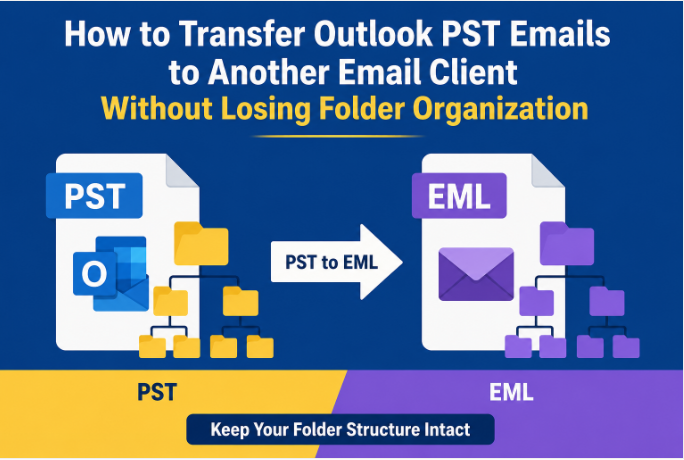
Transferring emails from Microsoft Outlook to another email client can become a challenge when mailbox folders, attachments and message properties need to stay organized. Outlook keeps locally saved mailbox data in PST files, and many other email applications can read EML files for individual messages. Knowing the right way of PST file email transfer helps users not to misplace emails and not to break folder structures.
This guide covers PST, EML files, importance of PST to EML conversion, manual and automated methods, practical use cases and best practices for smooth email migration.
Understanding PST and EML File Formats
PST file: A PST file is a Microsoft Outlook data file in which mailbox data is stored locally. It can include emails, contacts, calendars, tasks, notes and attachments. PST files are used extensively for mailbox backup, archiving and transferring Outlook data between systems.
EML file: An EML file is a single email message saved in the Electronic Mail Format. It usually contains the email body, sender and recipient information, subject line, time stamps, headers and attachments. Many email applications support the EML file and it can be handy when users want more flexibility in accessing individual messages.
The difference is PST files are mailbox containers and EML files save emails separately. Therefore, converting PST data to EML files can help in transferring and accessing individual Outlook messages in compatible applications.
Why Convert PST to EML for Email Migration?
Converting PST to EML can be useful when migrating from one email platform to another, or if you want to access archived Outlook messages outside the Outlook environment.
Some of the common reasons are:
• Transferring Outlook emails to a different email client
• Make stand-alone copies of important email messages
• Easier access to old messages
• Sharing individual emails with their original content intact
• Less reliance on one email app
• Organizing emails into folders for migration or backup
But it is important to maintain the original folder structure. A mailbox can have Inbox, Sent Items, Projects, Clients, Finance and many custom subfolders. If these relationships are not maintained during migration, it can make it unnecessarily difficult to find messages later.
Manual Method: How to Move Outlook PST Emails
One method is to manually export or drag individual Outlook emails and save in EML format. This method might work for small mailboxes with a limited number of messages.
Step-by-Step Guide to Manual PST Export
-
Launch Microsoft Outlook on the computer.
-
Load or open the PST file containing the desired mailbox data.
-
Create destination folders on the computer that match the Outlook folder structure.
-
Open an Outlook folder with the emails you want to transfer.
-
Pick individual emails or a small number of messages.
-
Drag and drop the messages to the destination folder, where you want to save the messages. You can save the messages in the destination folder as per the available export options.
-
Repeat the process for each mailbox folder and subfolder.
-
Open or import the resultant EML files to the target email client. The precise steps may differ, depending on the version of Outlook and the destination application.
Pros of the Manual Approach
Some advantages of the manual approach are:
• Good for only very few emails
• No need to learn a separate conversion process
• Enables users to select specific messages
• May be useful for occasional email exports.
Cons and Limitations of Manual Migration
If you only have a few emails, manually converting them is easy enough, but it gets difficult when you have larger mailboxes.
Some limitations include:
• Takes considerable time for large PST files
• Manual recreation of folder structures will be needed
• Repetitive work increase the risk of human error
• Requires availability of Outlook
• Managing attachment and message properties can be tricky
• Not practical for large-scale email migration
• Difficult to accurately replicate complex subfolder structures
For instance, organizing a PST archive with thousands of emails in dozens of project folders can take hours or even days to do manually.
Automated Method: Converting PST to EML Using Software
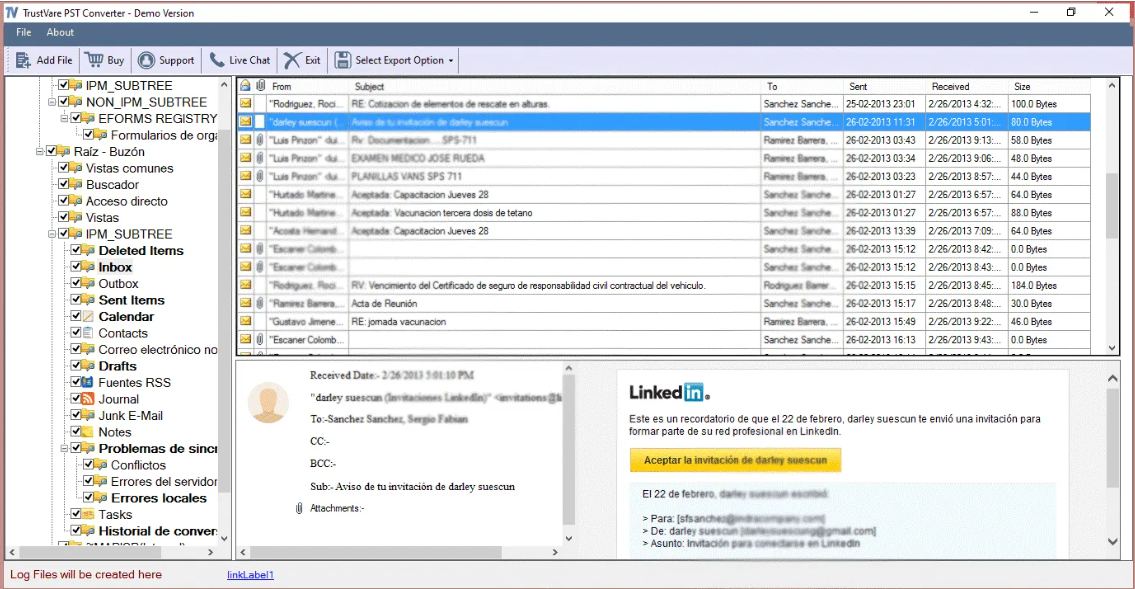
For bigger mailboxes, there may be a dedicated approach to convert the same. TrustVare PST to EML Converter is an application especially developed to convert Outlook PST mailbox data into separate EML files and it manages multiple folders in an organized way. The general workflow includes selecting the PST file, inspecting the mailbox folders, selecting the required data, and specifying a destination for the converted files.
Step-by-Step Guide Using a PST Converter Tool
Step 1: Launch the software and install the PST to EML conversion tool.
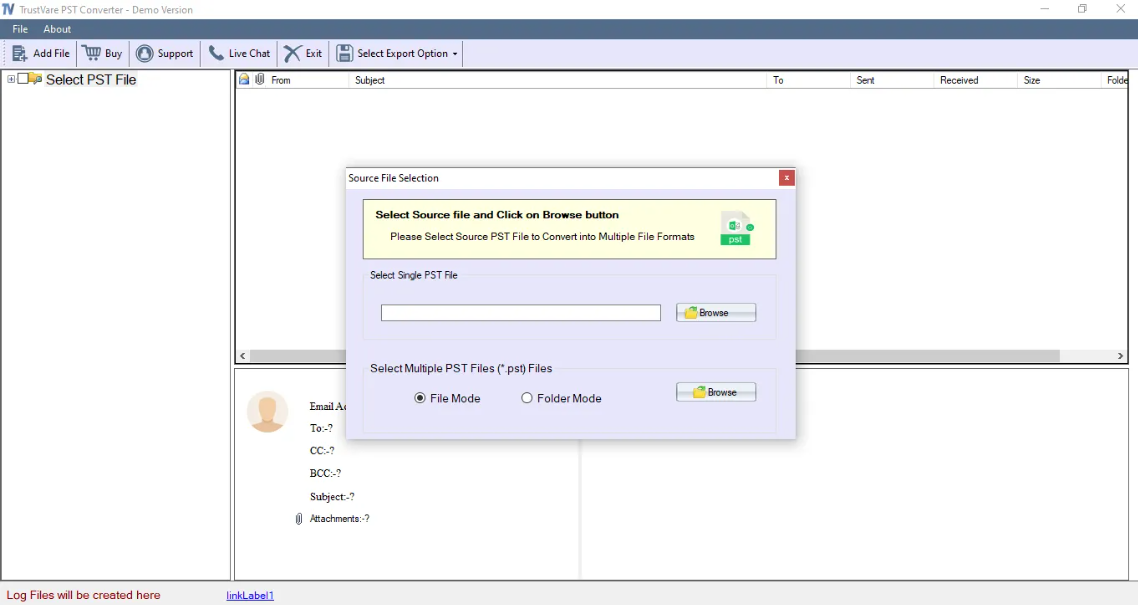
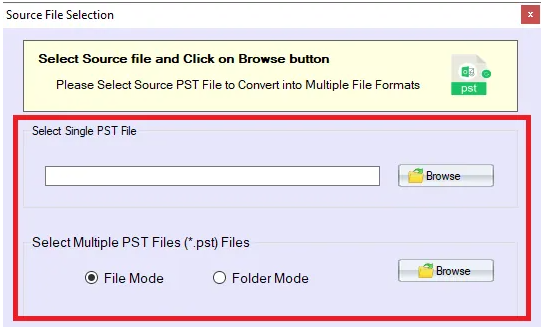
Step 2: Add the PST file you want to import to the software.
Step 3: Preview your added PST files
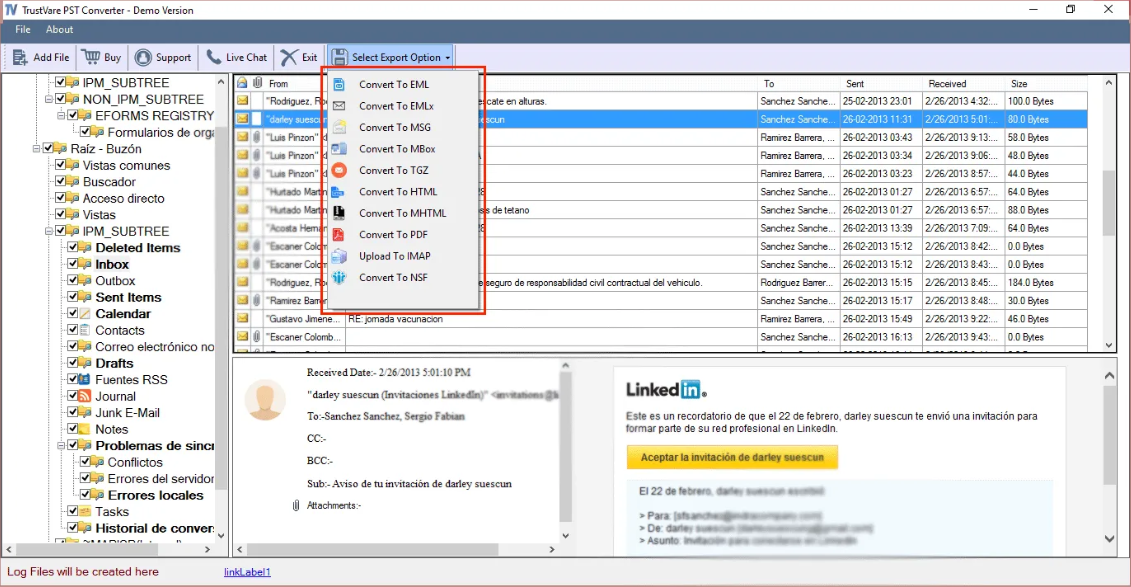
Step 4: Choose EML as output format
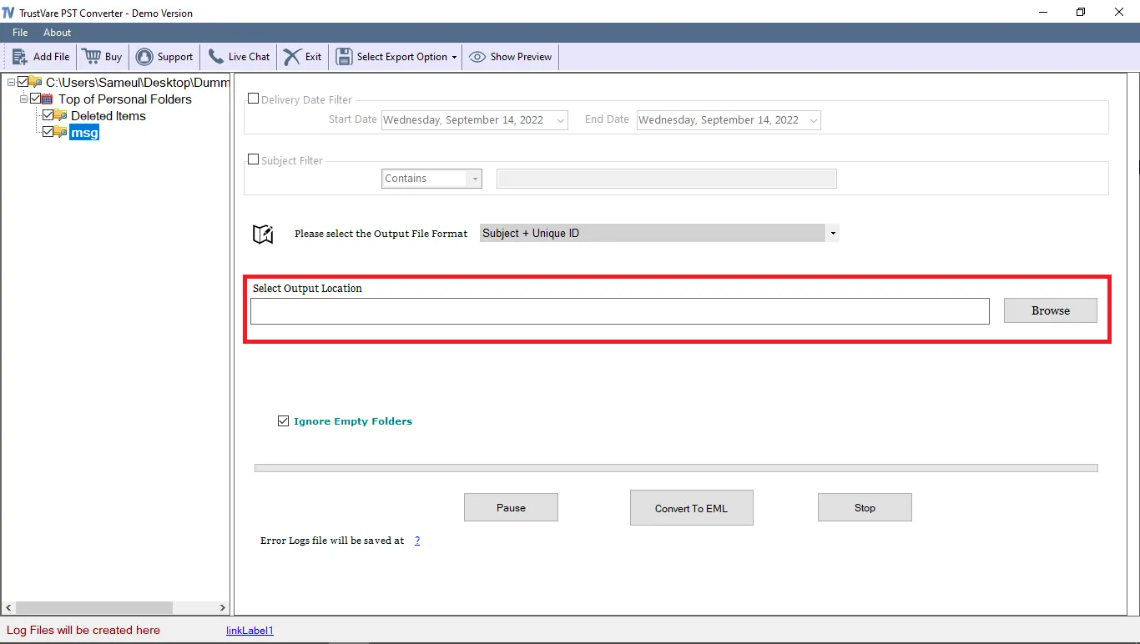
Step 5: Select a destination folder for the EML files.
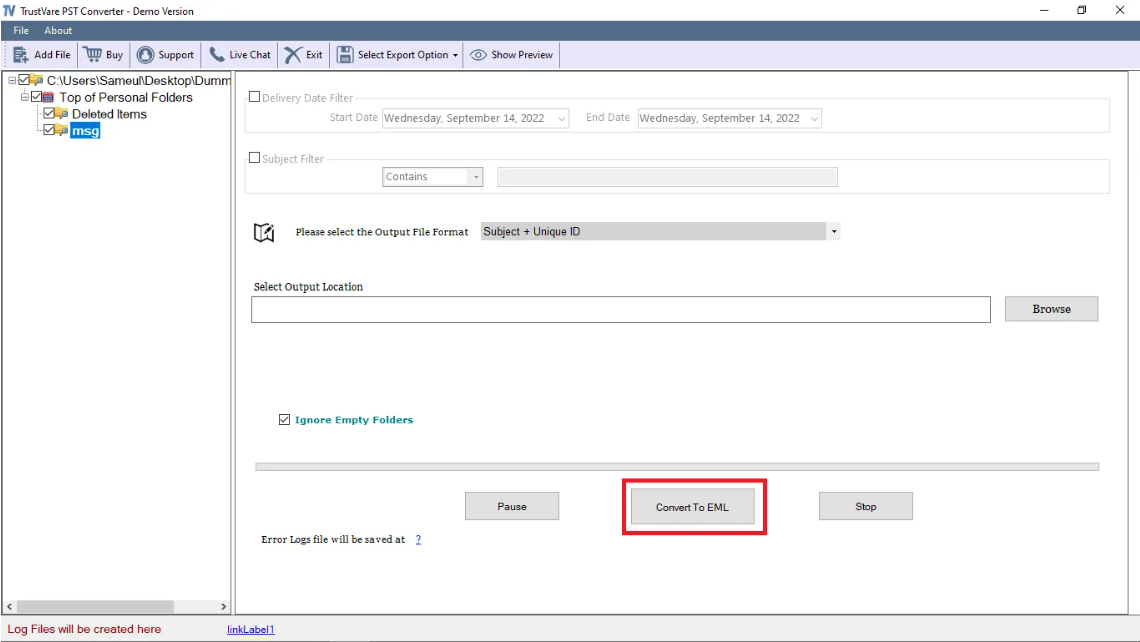
Step 6: Begin the conversion process.
Real-World Use Case: Migrating a Corporate Archive
Let's consider a small consulting company that wants to move away from an Outlook based archive system. For several years now the company has been collecting a PST file of client correspondence, organized into folders like:
• Current Customers
• Projects Completed
• Contracts
• Finance
• Internal Communications
Each main folder also contains several subfolders, sorted by year and project name.
Manually transferring thousands of emails would require employees to rebuild every folder and repeatedly export messages. There is a risk that emails may end up in the wrong place.
A structured conversion method can help the organization process its mailbox data more consistently when it has a structured conversion method. The created EML files can remain grouped according to the folders they were extracted from. It will be easier to recognize client communications after migrating to another compatible email environment. This is helpful when historical mailbox organization has business value.
Key Benefits of Using a Dedicated Conversion Tool
A dedicated conversion process can have a number of practical advantages over repetitive manual handling:
• Handles large volumes of emails more effectively
• Eliminates repetitive manual processes
• Maintains mailbox folder organization
• Enables selective folder conversion
• Processes electronic mail messages and attachments systematically
• Facilitates the use of archived PST files
• Minimizes the risk of unintentionally missing messages
This structured approach is especially helpful when the mailbox data includes multiple levels of folders and subfolders.
Suitable For
• Users migrating from Outlook to another email client
• Companies migrating legacy email archives
• Professionals responsible for project-based email logs
• Users requiring single copies of important emails
• Organizations with large numbers of PST files
• IT administrators responsible for mailbox migration tasks
• Users requiring easier access to particular Outlook messages
Best Practices for a Secure PST to EML Conversion
There are a few things you can do to help cut down on migration problems.
Make a Backup: Always have a backup of the original PST file untouched before you start the migration process.
Check Folder Structure: Review the current mailbox hierarchy and identify the key folders to maintain organization.
Testing with a small directory: Process a small folder and inspect the result before processing a large archive.
Verify Attachments: Open some converted emails and verify that attachments are present.
Check Email Properties: Check important information such as the sender, recipients, subject, date, and message content.
Maintain Adequate Storage Space: Large PST files can create thousands of single EML files so make sure you have enough disk space.
Set the Destination Location: Having a clear folder structure for the destination will make it easy to verify after migration.
FAQs
Can you convert PST file to EML without Outlook?
Yes, you can convert PST file to EML without Outlook. Depending on the type and condition of the PST file, an alternative approach to direct access to Outlook is specialized PST conversion tools.
Does PST to EML conversion save attachments?
A correct conversion process will preserve email attachments along with their respective messages. It is still wise to spot-check a few of the converted e-mails.
Is it possible to convert selected PST folders only?
Some PST converter utilities give the option to users to select certain mailbox folders instead of converting the entire PST file.
Why do we need to maintain folder hierarchy?
The organization of folders gives context to email records. This means users can continue to work with the mailbox structures they are used to after migration and that it is easier to find emails.
True or False: Large PST files can be efficiently processed using manual methods.
False. While you technically can drag and drop emails manually, it is extremely time-consuming, highly inefficient, and impractical when a PST file contains thousands of emails and complex subfolder structures.
Conclusion
Migrating Outlook PST emails to another email client is more than just copying message files. Before you start the migration, consider folder hierarchy, attachments, email properties and mailbox organization. Manual methods are effective for a limited number of emails, but are often inefficient for larger archives. Structured conversion can make bulk processing easier and minimize the effort required to recreate complex folder structures.
The organized and reliable way to perform PST to EML migration is to prepare the PST file, backup original data, test a small sample and verify converted emails.